Add a dancer, or invite one by email
Put someone in a class or a course yourself, free or with a price to pay, including someone who hasn't signed up yet. What they're told, how long they have to pay, and what happens when the class is full.
For owners and managers
Sometimes you put someone in yourself: a friend of the teacher, a dancer who paid at the desk, a regular whose card failed, someone who asked by phone. This is how.
Who: owners and managers.
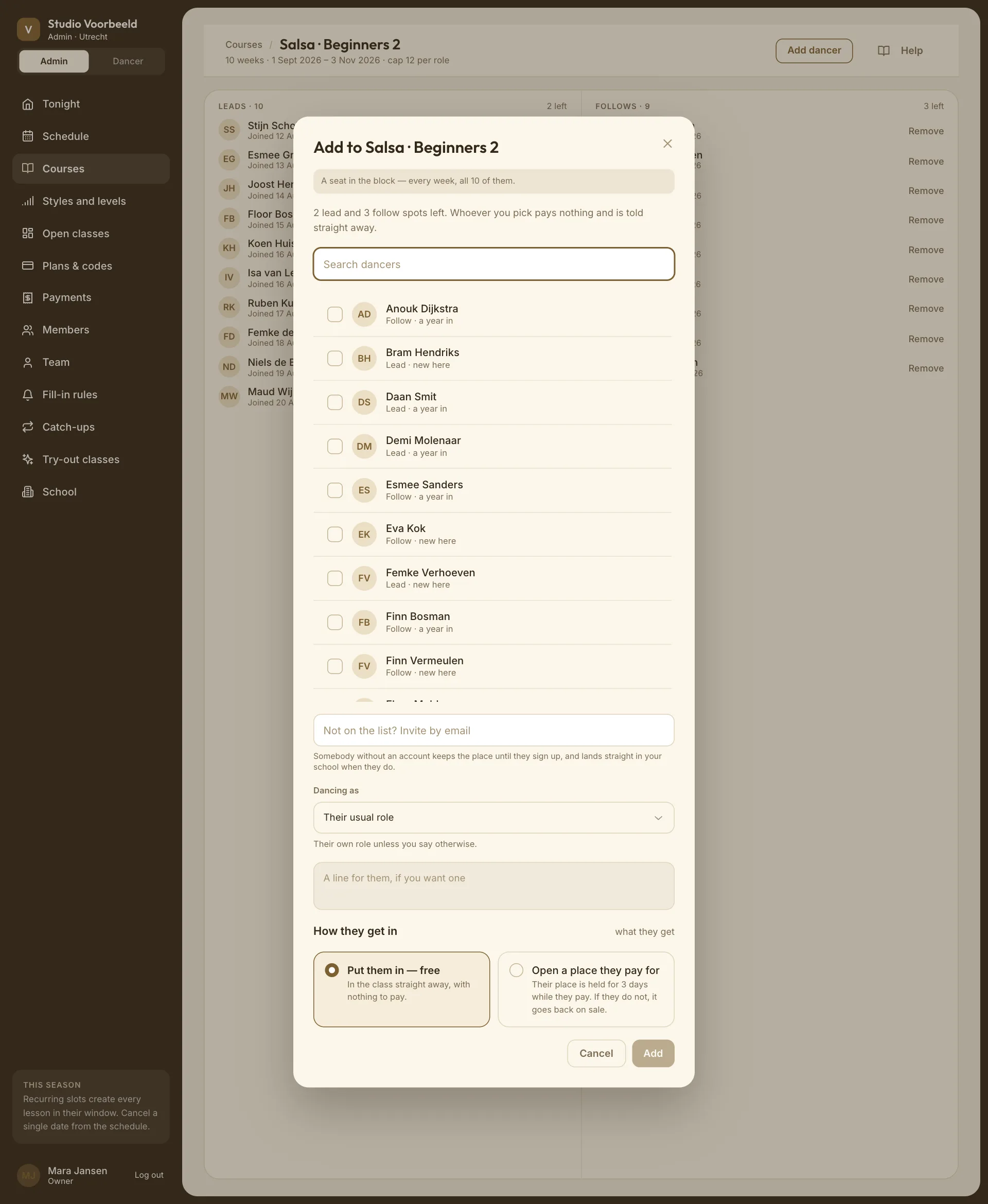
1. Decide: one date, or the whole block?#
| You want | Where |
|---|---|
| Someone at one lesson | Open the lesson → Add dancer above the roster. On a course week the button reads Add for this date. |
| Someone in every week of a course | Courses → the course → Who is in → Add dancer. |
The dialog says which one you're in. On a course week: "This date only — one class, not a seat in the block." On the course: "A seat in the block — every week, all 10 of them."
Above the list it tells you how full it is: "3 lead and 1 follow spots left."
2. Pick who#
- Search dancers and tick one or more members.
- Not on the list? Invite by email: type an address and press Enter. Add as many as you need.
Someone without an account keeps the place until they sign up, and lands straight in your school when they do.
Dancing as: Their usual role, Lead or Follow. It isn't asked on solo courses or events.
Add a line for them in A line for them, if you want one. It goes with the notice they receive.
3. Free, or a place they pay for#
Under How they get in:
Put them in — free#
"In the class straight away, with nothing to pay." They're told straight away. The roster shows Given by your name · free, and the course's people page Added by the school · free.
Open a place they pay for#
"Their place is held for 3 days while they pay. If they do not, it goes back on sale." The number of days is A place you hand out: days to pay under Cancellations.
- Leave the price blank to charge what they'd have paid themselves. Dansly works it out, including a try-out fee that comes off the block.
- Or type an amount, for example 60 for half price.
They get a notice to pay. Until they do, the place shows as Course seat · unpaid with the days left on the roster, and under Waiting to pay on the course. If the deadline passes, the place goes back on sale by itself.
For someone invited by email, the clock starts when they sign up, not now.
You can't charge a dancer's card for them. They always pay themselves.
4. Add#
Choose Add (or Add 3). The message confirms what happened, for example:
- "Anouk Dijkstra held — €60.00 to pay by Sat 26 Sept."
- "sam@example.com has a place held — theirs as soon as they sign up. Emailed 1 person."
- "We could not email sam@example.com — tell them yourself."
- "Bram Hendriks was already in."
When it's full#
If there's no room, the dialog asks first: This class is full, with exactly which cap would change. "Nobody is charged and nobody is bumped. The class simply gets bigger." Choose Add anyway or Back.
- On a single date, the cap goes up for that date only: "Cap raised to 13 for this class only".
- On a course, it goes up for every week of the block.
The cap is per role, so raising it for one role opens a place for the other too. The dialog says so: "Salsa · Beginners 1 is full for leads (8 of 8). Adding them raises the block's cap to 9 for all 10 weeks. One more follow place opens too, since the cap counts each role." After Add anyway: "Demi Molenaar is in — free, nothing to pay. Cap raised to 9."
Worked example#
At Studio Voorbeeld, Tom (manager) adds two people to Salsa · Beginners 1:
- Anouk, who dances there already and agreed to pay half: Who is in → Add dancer → tick Anouk → Open a place they pay for → 60 → Add. Anouk has three days to pay €60.
- Sam, a friend of the teacher with no account: type
sam@example.com→ Put them in — free → Add. Sam gets an email. The seat is under Invited, not signed up yet until Sam signs up.
Take it back#
- A place waiting for payment, or an invitation: Remove or Cancel on the course's people page, or Remove on the roster.
- Someone who paid: Remove warns you it isn't refunded. See Manage course people.